Thursday, April 25, 2013

Creating your own symbols in CET Designer or Non supported Symbols

I promised you I'd show more cool uses for the CET Designer Edit Graphics extension. Here is the second one.

Have you ever wanted to put something in your drawing that isn't supported by SmartTools, Canvas, or ProjectSymbols? I've come up with a method to create your own symbol by using ProjectSymbols and Edit Graphics.

You will need a couple things to do this procedure.
  • First you need to find a good 3D symbol either in AutoCAD or SketchUp.
  • Second you need to have a manufacturer other than Steelcase or Haworth installed in ProjectSymbols.
After that you are ready to go!

Here are the basic steps.  Watch the video to get the details.
  1. Import the AutoCAD or SketchUp symbol.
  2. Place a ProjectSpec Symbol that is about the same size as the one you are creating.
  3. Use Edit Graphics Replace Symbol to switch the PS Symbol to the new symbol.
  4. Use the Query command, Make Special to edit all the part info.
  5. Change the Install Text.
I also show you how to change the colors on the symbol.  :)


Let me know if this is helpful.

Thank you and have a great day!
Cate

Monday, February 11, 2013

Another quick CET Designer rendering tip

Sometimes new features are slipped in and we don't notice them or we don't really know what they are useful for.  I've found another one that Configura added to CET Designer that I think you will like.

It's the Camera Angle Step function and it helps you get the same angle on a rendering every time.  Or you can do a birds eye view of a plan. Have a client that just isn't getting the plan view?  Render it from above to help them understand.

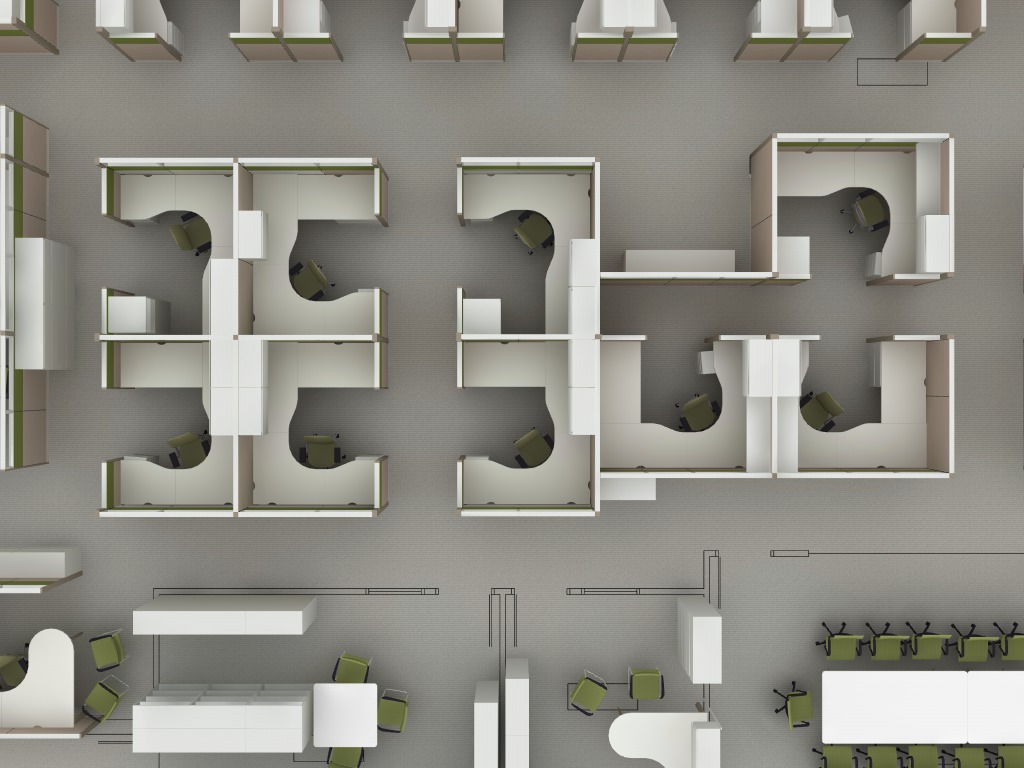
Rendered from above
Front view; I used a clipping plane to show the inside of the workstation.
Rendered in elevation


How to use it:


As always have fun.  Let me know if you want to see something special here.

Hope you aren't snowed in.  :)

Cate

Tuesday, January 15, 2013

Other uses for CET Edit Graphics

Happy New Year!!

The holidays flew by as usual and now it's back to work.  I hope you all had a wonderful time.

By now I hope you have played with Edit Graphics in CET Designer.  If you haven't installed it you should, then download the reference guide from the Configura site and read the section on Edit Graphics.

A few cool ways to use Edit Graphics have occurred to me to share with you.
  1. Show a worksurface that is going to be cut to fit in the field.
  2. Apply a COM easily.
  3. Have multiple colors on the same item.
You may never have to do these things but if you do it's helpful to know how.

Here is the video on how to make a cut-to-fit worksurface.


I'll give you videos on the other two soon.

Have a great day!
Cate

Monday, November 26, 2012

New CET 3.2 rendering technique

No longer need the "white room" to render!

It's been a while since I posted and a lot has happened. I'll get to that later. But for now, my friends, the best new thing in CET 3.2 is a little check box called Emissive background.  What that means is there is a nice white ambient light that is shining all around our layout that we can use with the Natural Light render mode.  So, no more need for the white room to get a nice natural light effect.
Here is an example:


I've made a short video to get you started.


As always, I appreciate your feedback and comments. Enjoy!!

Cate


Tuesday, September 25, 2012

Ghost Panels

Rendering in CET Designer is a hot topic for me these days.  A lot of my time in training is spent on it and I've been showing some of my students this nifty way to create Ghost Panels.  It's very similar to the process you use for the SketchUp look but with a twist. 

Here is the result:


I created a short video with the steps if you'd like to watch it.


Hope this works for you.

Cate

Thursday, August 9, 2012

Announcing In-Depth, Topic Focused, Webinar Series

Get in-depth education in two 2-hour one topic training, specifically geared for your users.  The webinars are hands on; you sit comfortably at your own computer with CET running as I demonstrate, watch, and guide you as you learn. The first session ends with a homework assignment to reinforce the topics covered. 
Part of the second session is a Q&A discussion about best practices.

Cost:

Each course is $250 per person. Class is limited to 6 participants.

Dates:

CET Rendering:
  • September 17 & 18, 2012, 11:00 to 1:00 EST
  • September 19 & 20, 2012, 2:00 to 4:00 EST

CET ProjectSymbols In Depth:
  • September 19 & 20, 2012 11:00 to 1:00 EST

CET Edit Graphics and Specials:
  • September 17 & 18, 2012, 2:00 to 4:00 EST

Sign up now:

Sign up at www.catesword.com or email me at cate@catesword.com for more information. More classes will be added as needed, check the web site for more times and dates.

Course Outlines

CET Rendering Class

Session 1 Topics:
  • Basic rendering tips – angle, composition, depth
  • Capture Image
  • Lighting – simple, multiple sun, grid, ceiling tile
  • PhotoLab setting
  • Photo Series
  • Paperview
  • Output
Session 2 Topics
  • Environment
  • Materials
  • SketchUp
  • Special effects

CET ProjectSymbols in depth

Session 1 Topics:
  • Placement, rotation
  • Layers
  • Resolution
  • Block replace
  • Specification
Session 2 Topics
  • Standard options

  • Specials
  • Non supported Catalogs
  • Converting drawing

CET Edit Graphics and Specials

Session 1 Topics:
  • Replace Graphic
  • Simple modifications
  • Advanced modifications
Session 2 Topics:
  • Review Advance modifications

Thursday, July 19, 2012

A CET Dimension Tip

Wow, where has the time gone! So much for giving you tips every month!  I'll try harder, but for now I have another tip for the CET Designer users.


For many of you as you start using the software for installation drawings you find that you don't have the control over the dimensioning you'd like.  Sure, now we can set a preset size and change them all globally but we are still missing the true ability to link them to specific "layers" or as they are called in CET Visibility Categories. I know it is coming but until CET has it solved I have a work around.


I had a client ask me the other day if she could have dimensions for a panel plan and then other dimensions for components.  The answer is not really.  But I found a way she could do it.  I'll share it with you.

  • First you rename one of the Part Tagging Tags to Panel Dimensions and the other to Component Dimensions (you don't really HAVE to do this but it gets confusing if you don't).


  • Then right click on the dimension and pick Visibility and Categorization.


  • In the Categorization tab check either Panel Dimensions or Component Dimensions.


  • When you set up your PaperView Viewports just make sure that you don't have Normal View selected and then go to the Part Tagging and check the dimensions you want to print.

There you go.  I suspect there are more uses for this tip, let me know if you find other ways to use it.

Also, don't forget to order your renewal before August 1.  If you plan on renewing in the future do it now before the rates go up!!

Enjoy the rest of the summer!

Cate